
IPTV Czech Setup Guide
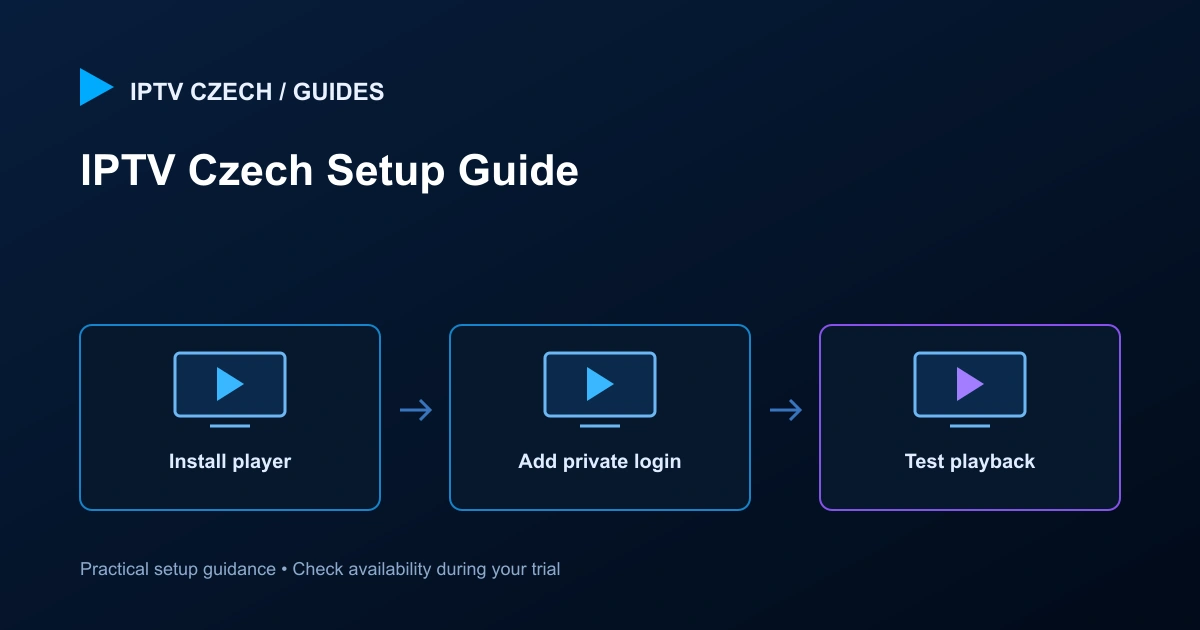
Set up your player in a clear order: check compatibility, receive your private access details, add the service, then test playback. Keep the details supplied by support private.
Before you install anything
Find the exact model of your television or streaming device and its operating system. A brand name by itself is not enough: two televisions from the same manufacturer can use different systems and app stores. Check that the device has free storage, current software and a working internet connection before choosing a player.
Use the official app store or the player developer’s official instructions. Avoid modified downloads or instructions that ask you to disable security protections without a clear reason. Installing a player does not include an IPTV subscription and does not guarantee every format or feature will work.
Choose the appropriate login method
Support may supply a server address with a username and password, or a private M3U playlist URL. These are different ways of adding the service to a compatible player. Choose the login type that matches what you actually received. Do not paste an entire playlist link into a server-address field or split a link by guessing where the password begins.
Some players label the account-based method as Xtream Codes or Xtream API. This describes the form of login in the player. Use the current customer-facing address supplied by support, exactly as written. Never replace it with an address found in an unrelated online tutorial.
Install and open your player
Open the device’s app store, find the intended player and check its publisher. Install it, then open it from the device’s normal applications list. If the app requires its own activation or licence, confirm the arrangement with support before paying another provider. A subscription purchase and an app-store purchase may be separate transactions.
On a television, keep the remote nearby and check that text fields can be reached easily. On a phone or computer, copy private credentials carefully and avoid storing them in screenshots or a shared clipboard. If the player supports more than one playlist, give this account a descriptive local name so it is easy to identify later.
Enter the access details carefully
Type or paste the supplied server address, username and password into their corresponding fields. Preserve upper- and lower-case letters. Remove accidental spaces at the beginning or end, but do not otherwise alter the credentials. A missing character can look like a network problem even when the connection is healthy.
For an M3U login, use the complete supplied URL. A private playlist URL may contain credentials inside it, so treat the whole address as sensitive. Do not send it to a public URL checker or paste it into a social-media message. If it fails, describe the error to support and ask for a secure way to verify the details.
Allow the catalogue and guide to load
The first import can take longer than opening a player you have already used. Leave the app open while it loads the channel list and, if supported, the programme guide. Repeatedly closing it during import can make the process appear stuck. A catalogue entry appearing does not necessarily mean its guide data has finished loading.
Once the import completes, create a small favourites list. Start with the channels you will use regularly rather than scrolling through the entire catalogue every time. If the player offers language or category filters, use them to make navigation easier for the household.
Test the real viewing experience
Open a few different live channels, then try a movie or series if your package includes the relevant content. Check whether video starts, sound is present and the remote can pause or navigate where the content supports it. Test subtitles and alternate audio on an item known to provide them. Missing subtitle options on one programme do not prove the whole player is broken.
Test from the normal viewing location. A phone beside the router is not an equivalent test for a television behind two walls. If buffering occurs, compare a wired connection or a position closer to the router when practical. Change one condition at a time so the result tells you something useful.
Check your connection count
Your plan’s simultaneous connection count is the limit on active viewing sessions. Stop playback on an old device before testing a new one if your plan has one connection. Some apps continue playing in the background until you stop the stream or close the player.
If another screen is already watching, do not repeatedly reconnect in an attempt to force both through a single connection. Choose a plan that supports the household’s actual simultaneous viewing. Contact support when you are unsure whether a session has ended cleanly.
Fix common setup problems methodically
If login fails, compare each field with the latest details from support and check the selected login method. If the list loads but nothing plays, note whether every channel fails or only a category. If one channel fails, try another from the same group before changing the whole configuration.
Check the device clock and whether the internet works in another app. Restart the player once, then the device if needed. Avoid factory-resetting a television or deleting a working playlist as your first step. Preserve enough information to explain the problem and follow the troubleshooting guide for a structured check.
Keep a safe setup record
Record the player name, device model, software version and the date you tested. Keep access details in a private password manager or another protected location. Save your order reference separately from credentials so you can ask for support without sharing the sensitive parts.
When asking for help, include the exact error wording, whether it affects all content, the approximate time and the checks already attempted. A screenshot can help, but hide usernames, passwords, private URLs and personal information first. Replying to your existing service email keeps the discussion together.
Confirm before arranging payment
Once you have tested the relevant content and devices, tell support what worked and what still needs attention. Confirm the selected plan, duration and connections against your order details before arranging payment. A request confirmation is not a receipt for payment and should not be treated as proof of activation.
Keep using the current customer-facing address provided in your service messages. If a future update is required, follow verified instructions in your existing support conversation instead of changing hostnames from a search result. This keeps your setup aligned with the service you requested.
Related guides
Complete a repeatable setup test
A repeatable test helps separate a setup mistake from a network or content issue. Start with one device and one player. Record the device model, operating system and player name, then load the access details exactly as provided. Avoid moving between several players during the first check: each application can have different field labels, programme-guide handling and playback settings. Confirm that live television loads before testing on-demand content or optional features.
Next, try several ordinary viewing actions. Change between two live channels, return to the guide, and reopen the same channel. If you use subtitles or a second audio track, select them from the player controls and check whether the source actually offers them. Test pause or seeking on an on-demand item separately from live television, because the controls and availability may differ. A feature that works on one source should not be assumed to exist on every channel.
Check how the player behaves after a normal restart. Exit it using its own menu, reopen it and confirm that your account or playlist remains available. This checks whether the player saved the configuration and whether an unexpected guest or temporary mode was selected. If the login has disappeared, investigate local application storage and settings before requesting replacement access details. Re-entering credentials repeatedly will not resolve a storage problem.
If you need help, describe the last successful step and the first failing step. Include the device and player, whether other channels work, and whether the issue occurs on Wi-Fi or a wired connection. Never paste a password or full private playlist link into a public comment. Reply to your existing support email so the team has the request context. Keep testing within the number of simultaneous connections assigned to your request, and stop unused playback sessions before testing another screen.
Official reference
For device installation, use Google’s Android TV app guide or Apple’s Apple TV app guide alongside the guide for your platform. These explain app installation; service credentials still come from your private setup message.
Continue with the IPTV Czech overview for the next step.
Questions about IPTV Czech setup
Should I use the server fields or the playlist field?
Use the method supplied for your request. Separate server, username and password values belong in an account-based login; a complete private M3U URL belongs in a playlist field.
Is seeing the channel list enough to finish setup?
No. Test actual video, audio and the features you need on the intended device and network before confirming the setup.
Ready to test your setup? Try It Free, then review the available subscription plans after confirming your viewing needs.