
IPTV Troubleshooting: Isolate the Problem
Start with the smallest useful check. Record what fails, change one condition at a time, and preserve a working account configuration whenever possible.
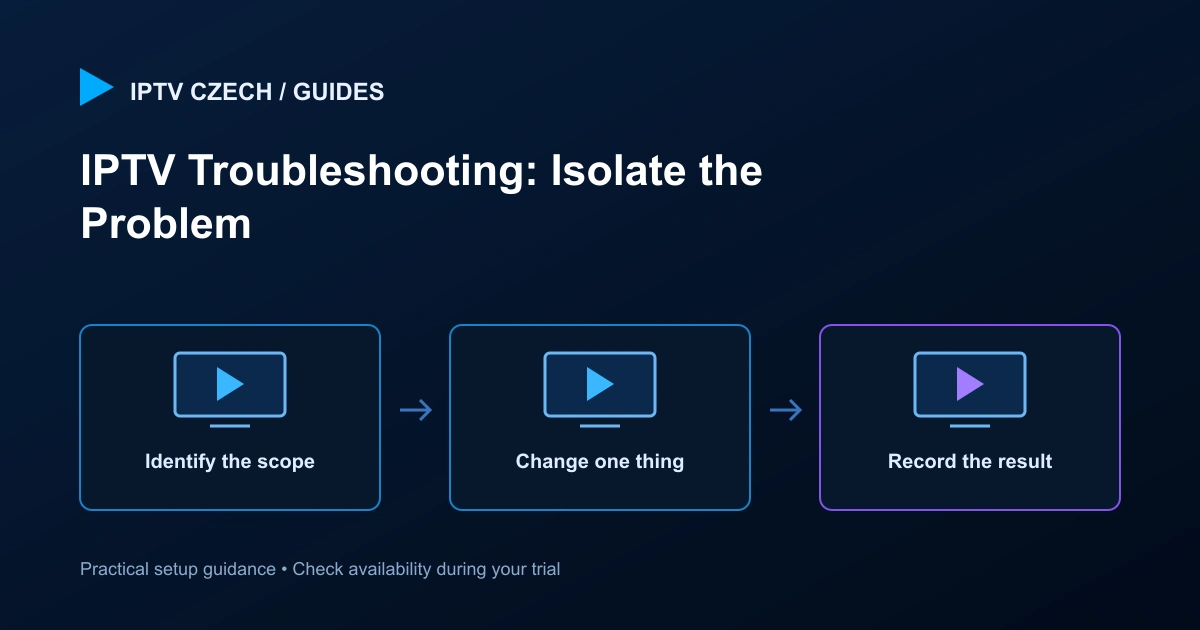
First identify the scope
Is the player unable to log in, is the catalogue empty, or does only one channel fail to play? These are different problems. Check a second channel from another category and, if relevant, a movie or series. Note the exact error wording rather than describing everything as not working.
Write down the time and your device model. A clear report helps support distinguish a source issue from a player or network problem. Hide credentials and personal details in screenshots.
When login fails
Confirm that you selected the correct login method and used the latest details from support. Check upper- and lower-case letters and accidental spaces. A server-address field is not the same as an M3U playlist field.
Verify that the device can reach the internet and that its date and time are sensible. Restart the player once. Do not repeatedly reset passwords or replace the supplied host with one from a tutorial; those changes can create a second problem.
When the list loads but playback fails
A loaded catalogue shows that part of the connection worked, but it does not prove that every stream is reachable or supported. Try content from more than one category. Check whether another device is already using the account’s simultaneous connection allowance.
If only one entry fails, record its name and leave the rest of the configuration intact. If all content fails, compare network conditions and player compatibility before deleting the account.
When video buffers
Compare another channel or another available quality level. Stop large downloads temporarily and check whether the device has stable Wi-Fi coverage. If practical, compare a wired connection.
Do not change several variables at once. Note which change improved playback and whether the result lasted. A short successful test beside the router may not represent the normal television location.
When audio or subtitles are missing
Check the player’s audio-track and subtitle menus for the specific item. Not every programme includes alternate languages or subtitles. A video stream may also use an audio format that the device handles differently.
Try a second item and check the television’s sound output. If another item works, report the failing content rather than reinstalling everything. Avoid promising yourself a subtitle language merely because the player offers a subtitle menu.
When the guide is wrong
Confirm the device time zone and the player’s guide settings. Guide data can update separately from the channel list, and some channels have limited or missing entries. Refresh the guide once using the player’s normal control.
Do not apply a large time offset until you know whether the whole guide or only one channel is affected. Record the displayed programme and the actual broadcast to give support a useful comparison.
Avoid destructive first steps
Factory resets, account deletion and app reinstallation can remove favourites, settings and useful diagnostic information. Start with reversible checks and preserve a private record of the supplied login details before making larger changes.
Do not install modified apps or expose credentials to public testing services. If a suggested fix requires unfamiliar permissions, ask support to explain why it is needed.
Send a useful support report
Include your order reference, device model, player name, error text, approximate time and whether the issue affects one item or everything. List the checks you already tried and their results.
Reply to your existing service email to keep the conversation together. Do not send payment details, router passwords or the complete private playlist URL unless support provides an appropriate secure method and explains the need.